
Connecting Gravity Forms with DefaultSDK
Overview
This guide walks you through integrating your WordPress Gravity Forms with Default's platform using the Forms SDK. This integration allows you to capture form submissions and leverage Default's workflow capabilities while maintaining your existing Gravity Forms setup.
Step 1: Create a Forms SDK Form in Default
Navigate to https://app.default.com/forms/webforms
Click "Connect your webform"
Select "Forms SDK" as your connection type
Click Next to proceed to the setup guide
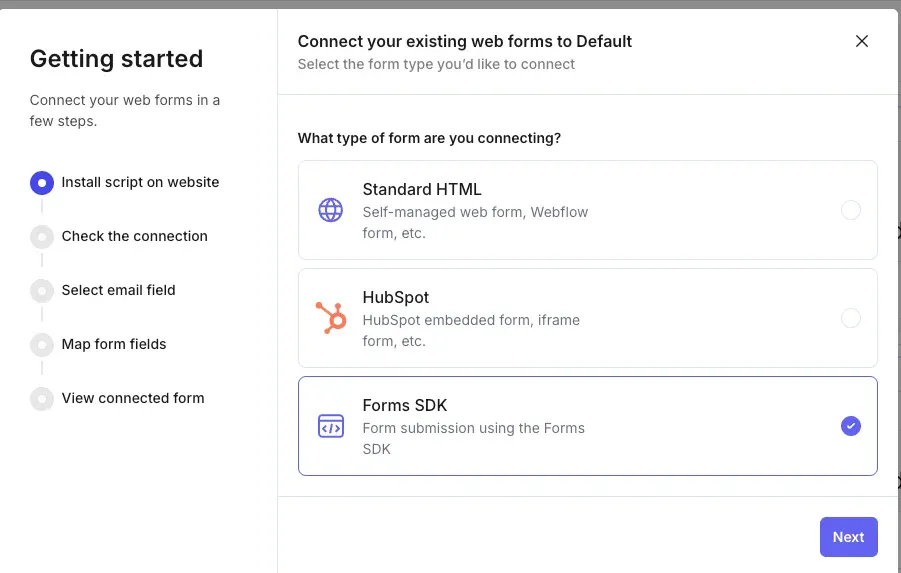
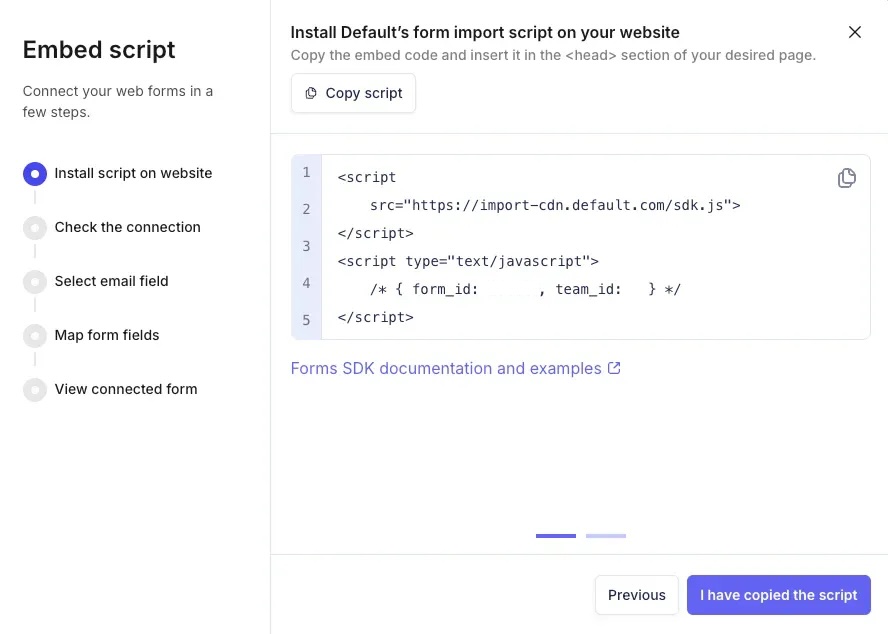
Step 2: Copy Your Form and Team IDs
Once you've created the SDK form in Default, you'll receive:
Form ID (e.g.,
123456)Team ID (e.g.,
999)
Keep these values handy as you'll need them in the integration script.
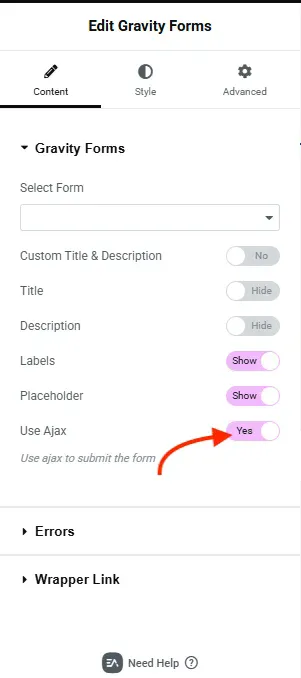
Step 3: Enable AJAX in Your Gravity Form
In your WordPress admin:
Edit your Gravity Form
Go to Form Settings → Form Layout
Enable "Enable AJAX" under the Advanced section
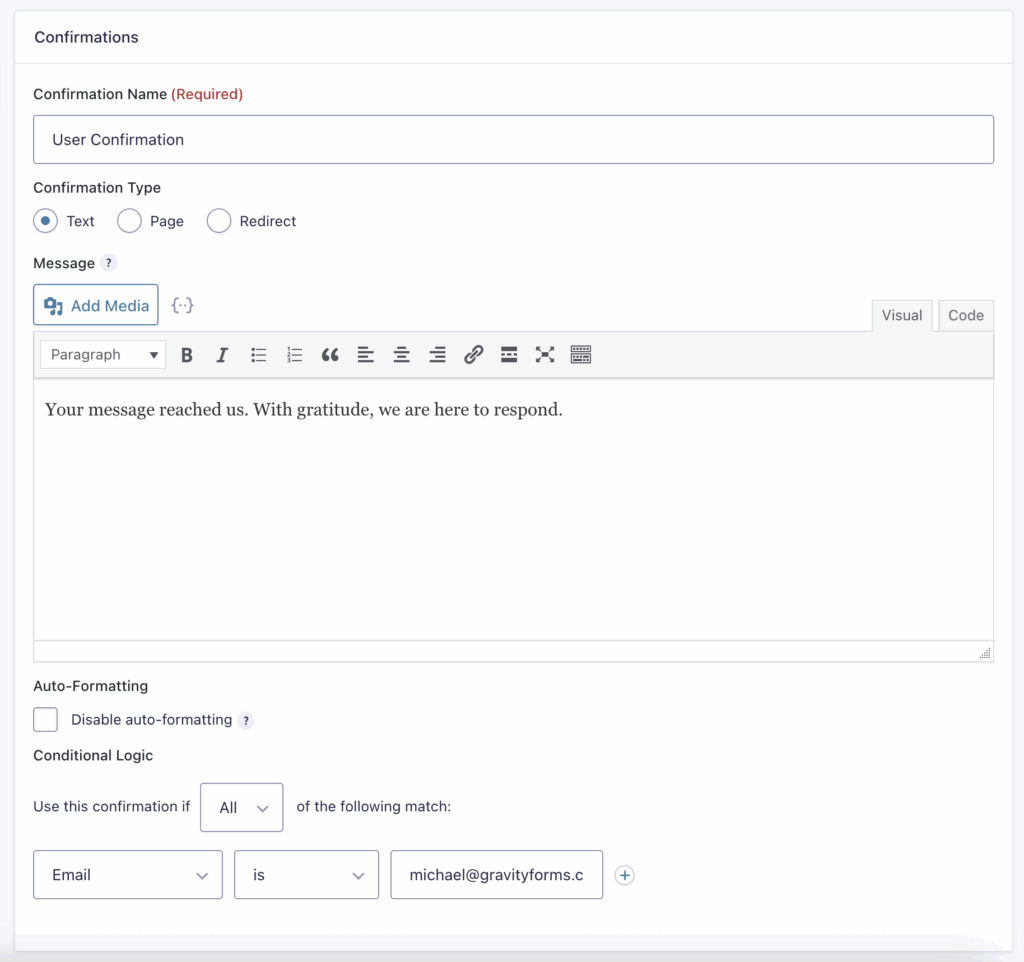
⚠️ Critical: The form action must NOT contain redirect URLs like
/contact-us/. This will break the integration. Use for example:/#gf_1or remove the action attribute entirely.
Step 4: Add the Integration Script
Add the following script to your page containing the Gravity Form. Place it in the <head> section or before the closing </body> tag:
Basic Integration Template
<!-- Load Default SDK -->
<script src="https://import-cdn.default.com/sdk.js" async></script>

<!-- Integration Script -->
<script>
(function (w, d, $) {
  // Configuration - Update these values
  var FORM_ID = YOUR_DEFAULT_FORM_ID;  // Replace with your Default form_id
  var TEAM_ID = YOUR_DEFAULT_TEAM_ID;   // Replace with your Default team_id
  var GF_FORM_ID = 1;                   // Replace with your Gravity Forms ID

  window.pendingPayload = null;

  // Helper function to get field values
  function val(id){
    var el = d.getElementById(id);
    if (!el) return '';
    if (el.type === 'checkbox') return !!el.checked;
    return (el.value || '').trim();
  }

  // Build the submission payload
  function buildPayload(){
    return {
      form_id: FORM_ID,
      team_id: TEAM_ID,
      responses: {
        // Map your Gravity Forms field IDs here
        email: val('input_1_1')  // Update with your email field ID
        // Add more fields as needed:
        // first_name: val('input_1_2'),
        // last_name: val('input_1_3'),
        // company: val('input_1_4'),
      },
      questions: [
        // Define your form questions - must match the responses above
        { id: 'email', name: 'Email', type: 'email' }
        // Add more questions to match your form fields:
        // { id: 'first_name', name: 'First Name', type: 'input', lead_attribute: 'first_name' },
        // { id: 'last_name', name: 'Last Name', type: 'input', lead_attribute: 'last_name' },
        // { id: 'company', name: 'Company', type: 'input', lead_attribute: 'company' },
      ]
    };
  }

  // Capture form data before Gravity Forms submission
  document.addEventListener("gform/theme/scripts_loaded", () => {
    gform.utils.addAsyncFilter(
      "gform/submission/pre_submission",
      async (data) => {
        window.pendingPayload = buildPayload();
        return data;
      }
    )
  })

  // Send to Default after Gravity Forms confirms submission
  function onDomReady(){
    var form = d.getElementById('gform_' + GF_FORM_ID);
    if (!form) return;

    if ($) {
      $(document).on('gform_confirmation_loaded', function(event, formId){
        if (formId !== GF_FORM_ID) return;
        if (!window.pendingPayload || !window.DefaultSDK) return;

        window.DefaultSDK.submit(window.pendingPayload, {
          autoRedirect: true,  // Allow Default to handle scheduler/redirect
          onSuccess: function(data) {
            console.log('[Default] Submission successful');
            window.pendingPayload = null;
          },
          onError: function(err){
            console.error('[Default] Submission failed:', err?.message || err);
          }
        });
      });
    }
  }

  if (d.readyState === 'loading') d.addEventListener('DOMContentLoaded', onDomReady);
  else onDomReady();

})(window, document, window.jQuery);
</script>

<!-- Fix form action to prevent redirects -->
<script>
document.addEventListener('DOMContentLoaded', function() {
  const form = document.getElementById('gform_1'); // Update with your form ID
  if (form) {
    form.setAttribute('action', '#gf_1');
  }
});
</script>
Step 5: Customize Field Mappings
Finding Your Gravity Forms Field IDs
Inspect your form in the browser
Look for input field IDs like
input_1_1,input_1_2, etc.Map these to your Default form fields in the script
Supported Field Types
Refer to the Default Forms SDK documentation for all supported field types:
email- Email address fieldinput- Short text fieldtextarea- Long text fieldselectorradio- Single selectcheckboxorselect-multiple- Multi-selecttel- Phone number
Step 6: Test Your Integration
Submit a test entry through your Gravity Form
Check the browser console for any error messages
Navigate to Default to verify the submission was received
In Default, go to the "Check the Connection" step to confirm integration
Troubleshooting
Common Issues and Solutions
Form Redirects After Submission
Problem: The form redirects to another page, breaking the Default integration.
Solution:
Ensure AJAX is enabled in Gravity Forms
Check the form's action attribute - it should be
/#gf_1or emptyRemove any redirect confirmations in Gravity Forms settings
Default SDK Not Loading
Problem: Console error showing DefaultSDK is not defined.
Solution:
Ensure the SDK script
<script src="https://import-cdn.default.com/sdk.js" async></script>is includedCheck for any Content Security Policy blocking the script
Fields Not Mapping Correctly
Problem: Data not appearing in Default or showing as empty.
Solution:
Verify field IDs match exactly (they're case-sensitive)
Use browser inspector to confirm the correct input IDs
Check that the questions array matches the responses object keys
No Confirmation After Submission
Problem: Form submits but nothing happens.
Solution:
Ensure jQuery is loaded (required for Gravity Forms AJAX)
Check that the
gform_confirmation_loadedevent is firingVerify your Form ID and Team ID are correct