
Default Extension
"Book Now" is a Chrome ext, built by Default, to enable your team to schedule, route, and handoff leads without having to open up Default, use messy internal channels, or facilitate back-and-forth communication across your Sales and GTM teams.
You can download the ext from this link.
Authenticate
In order to use the Default Book Now extension all users must have a provisioned seat on Default.
All members that would like their availability added for booking purposes will also need to ensure they have a calendar connected.
Schedule
The first tab in the Book Now ext is meant to facilitate quick booking of meetings between you (rep) and anyone else by using a personal event or any of your Default favorited events (this can include Group or Team type events).
The Schedule tab does not run any admin workflows.

How to Schedule: Live Booking
To live-schedule a meeting with a lead, you can follow these steps:
Enter prospect's email
Select an event (Personal event or any favorited event)
Click "Book now"
Calendar availability
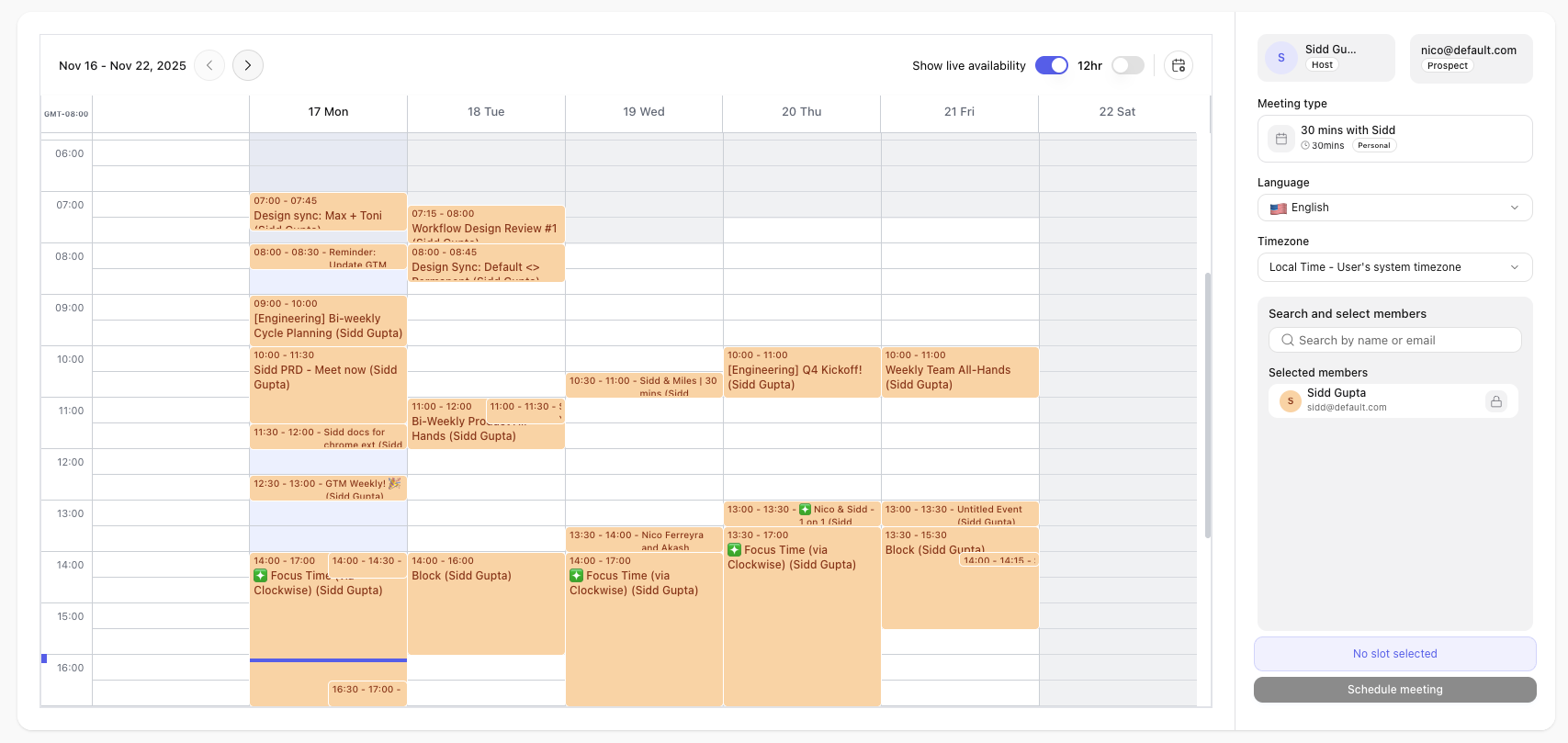
Toggle "show live availability" to see free/busy times on calendar. As a member, you can add additional attendees to the meeting and see their calendar overlaps, including their free/busy.
Unlike inbound scheduling, reps are able to book time over existing meetings.
Manage hosts
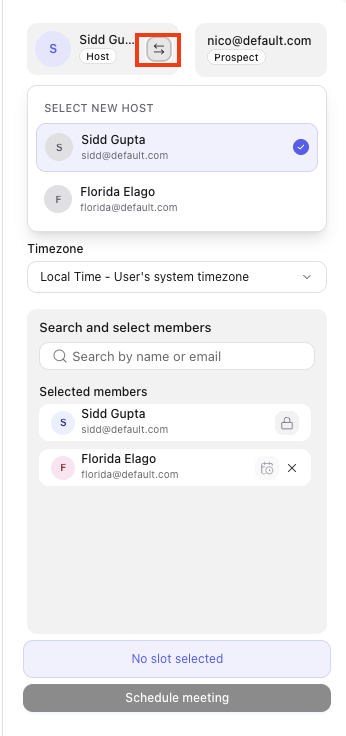
In the scheduling tab, a host is fixated and cannot be changed if using a personal event type. Hosts can be changed if using a Team event and a queue.
Group events will always pre-determine a member from a queue (or queues).
Additional attendees
Additional attendees can be added to your meeting (Group and Team events) if you add multiple members.
Event selection & notifications / reminders
Event selection is determined prior to the live scheduler. Once in the scheduler, you cannot change the event selection.
Notifications / reminders are managed in the same way they are now. You can find more in meeting reminders or in meeting notifications.
How to Schedule: Copy Link
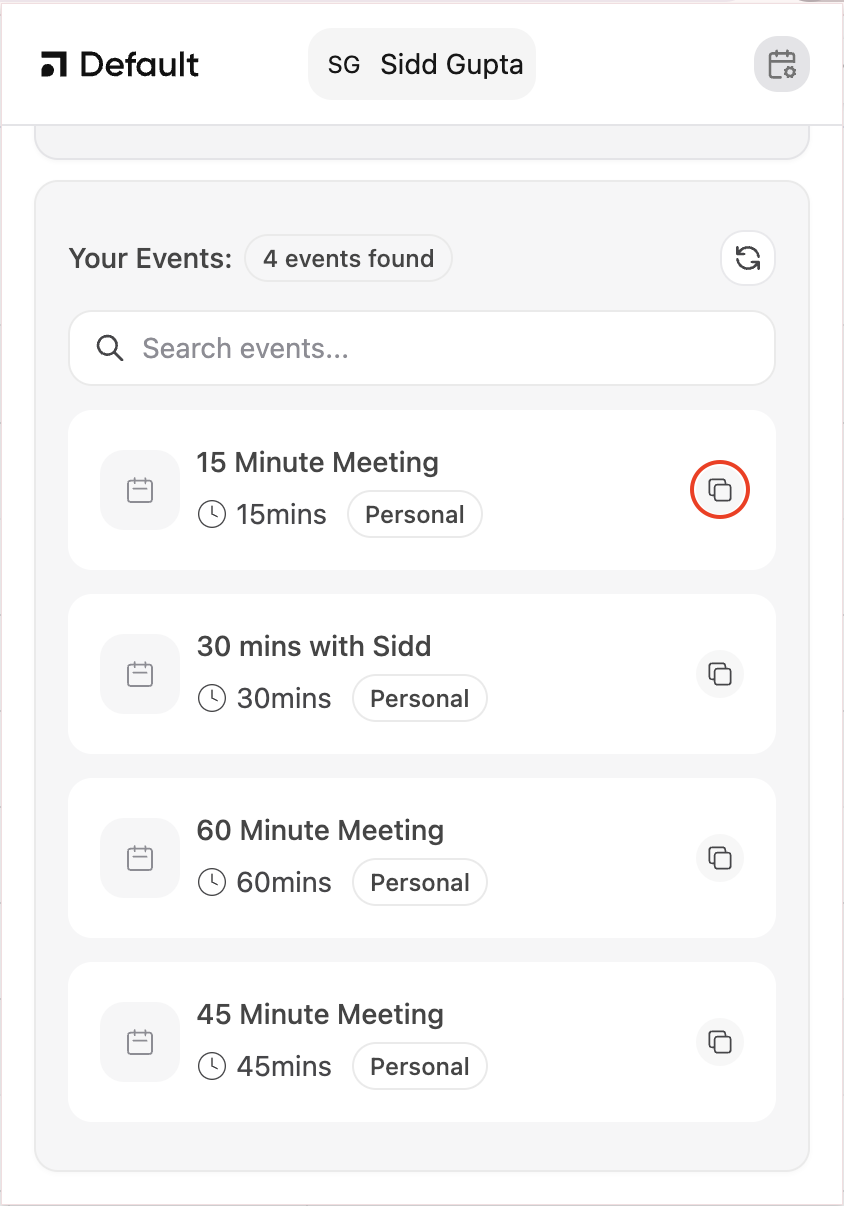
The copy link provides a link for the lead to book time on their own. As a rep, you can send this scheduling link in any form of external communication, like an email or LinkedIn DM.
To provide a link to your lead and allow them to schedule themselves, you can follow these steps:
Scroll to your events (Personal events or favorited events only)
Search / find personal event
Copy link
Routing
The second tab in the Book Now extension helps representatives route meetings to the right owner, whether it's through a queue or CRM record match ownership.
The routing tab relies on a connected workflow in Default. You should see a Browser Extension trigger available for use.
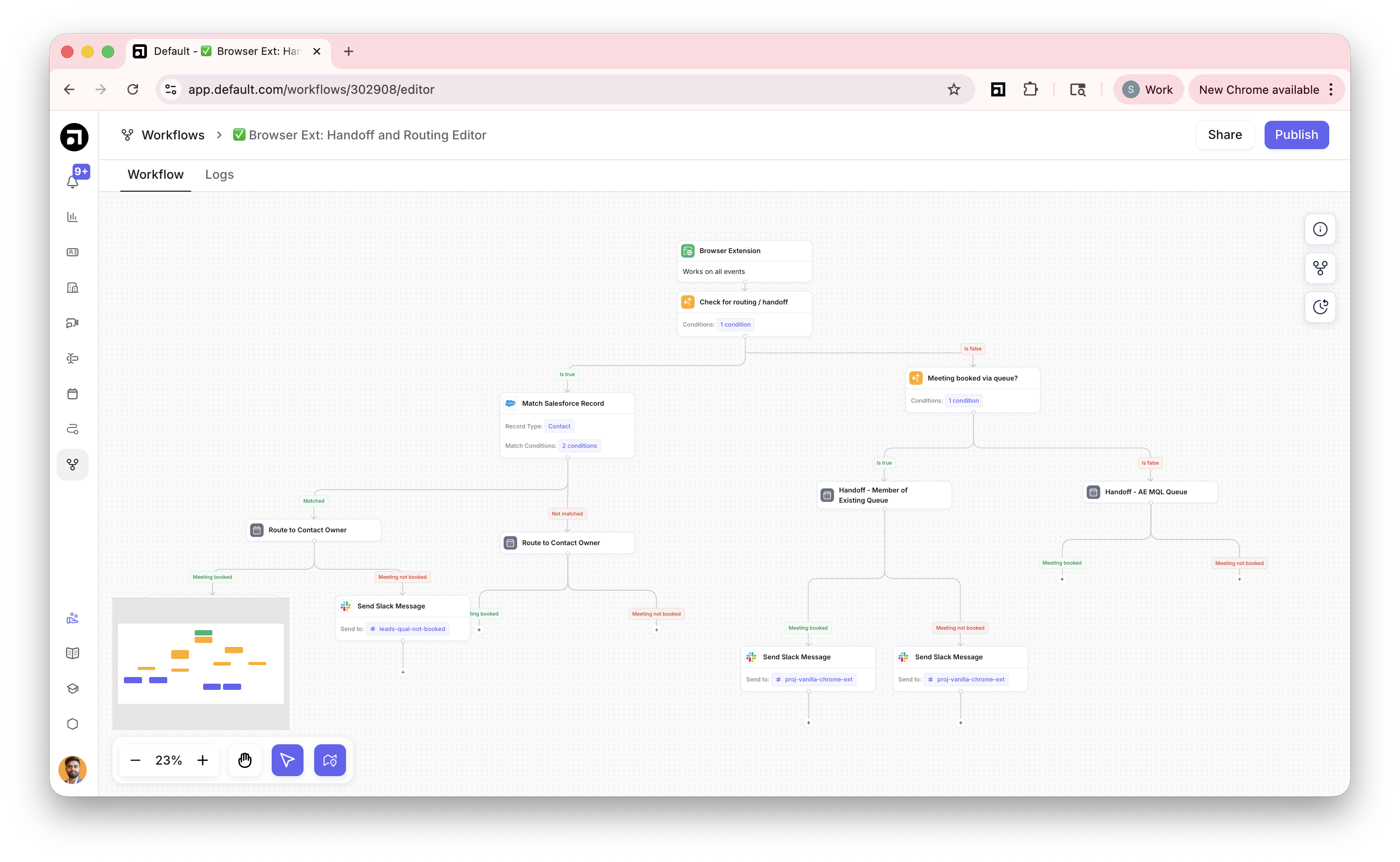
Sample workflow: this sample workflow has the left branch set to route and the right branch for handoffs. For routing, it checks for record (contact) ownership, and if none found then it uses a queue to facilitate booking a meeting.
How to Route: Live Booking
Enter prospect's email
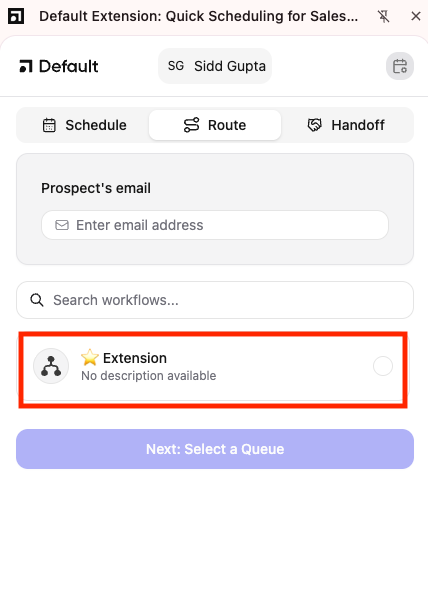
Pick a workflow
Pick a queue to route to (optional)
Can be skipped, depends on your business's requirements / internal logic
Click "Book now"
Pick a workflow
Select a workflow. If you have multiple, you can use the search bar to run the right one. We advise a workflow per "use-case". For example, you might have different routing criteria or logic for Outbound vs Inbound, so that would be two workflows with the Chrome Browser Ext as the trigger.
There are no limits to how many workflows you can have triggered from the chrome ext.
Calendar availability
Toggle "event details" to see enhanced details for any public events. As a member, you can add additional attendees to the meeting and see their calendar overlaps, including their free/busy.
Unlike inbound scheduling, reps are able to book time over existing meetings. Reps that are booking over busy time or outside of working hours will be hit with a friction model.
Manage hosts
In the routing workflow, a host can be set from the Default workflow canvas. If multiple attendees are added, the rep can change the host.
If the host is set by a queue (either from the workflow or from the ext interface) then Default will surface up to the next 2 members (3 total) to switch to. This is to account for situations where the first host may not have the preferred slots available on their calendar based on availability.
⚠️ This only works when using a queue + team event. For owner-based routing logic (eg. Salesforce Account Owner) it is fixed to the selected member.
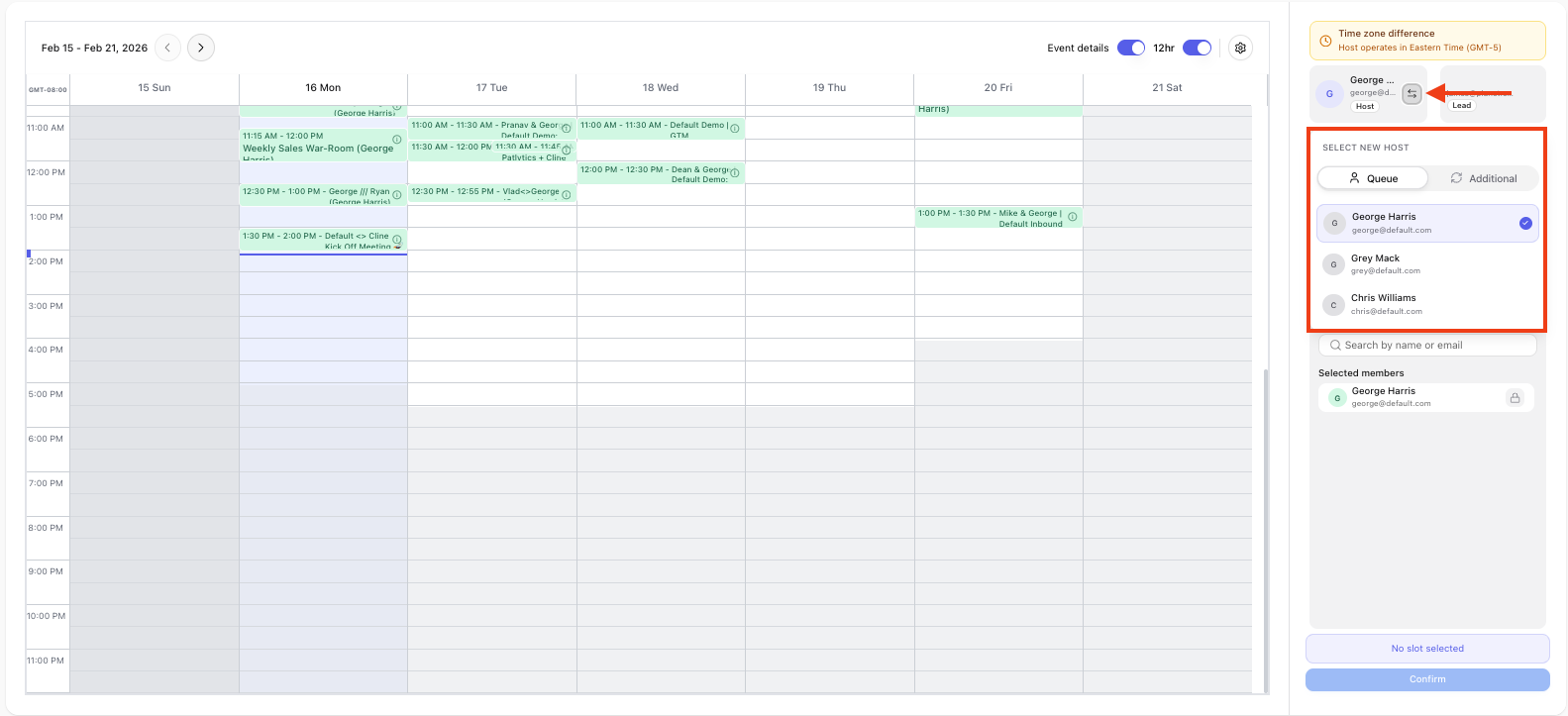
Default will rely on the host to:
Send calendar invites to the lead
Send configured meeting reminders to the lead
Send configured meeting status updates (booked, rescheduled, canceled, or no-show)
Send conferencing details to the lead
Additional attendees
Additional attendees can be added to your meeting (Group and Team events) if you add multiple members.
If you add additional members, you can click on the host (see above) and make any one of the "additional members" the host of the meeting as well.
Event selection & notifications / reminders
Event selection for routing is all based via the admin configured workflow. It cannot be edited in the scheduler.
Notifications / reminders are managed in the same way they are now. You can find more in meeting reminders or in meeting notifications.
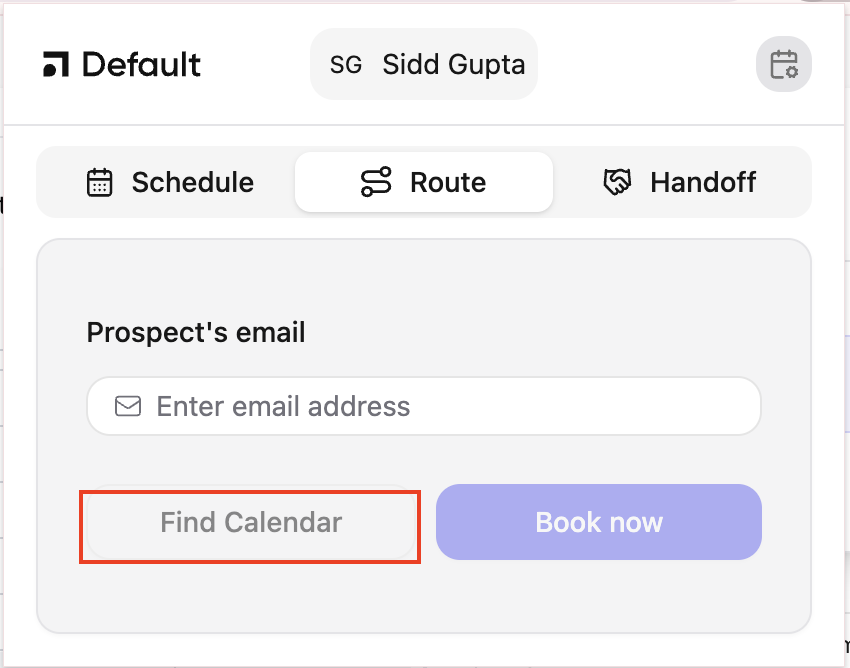
How to Route: Find Calendar
The find calendar option runs the admin configured workflow to find the corresponding link for the particular lead to book time on their own. As a rep, you can link to this scheduler in any form of external communication, like an email or LinkedIn DM.
Go to "Route" tab
Enter prospect's email
Click "Find Calendar"
Handoff
The third tab in the Book Now extension helps representatives hand meeting off to a member.
The handoff tab relies on a connected workflow in Default. Using the workflow, meetings can be handed off to:
A record owner
An active member of the same queue
An active member of a different queue
From the handoff tab you can also:
Cancel a meeting
Mark a meeting as no-show

Calendar events in the Handoff extension are limited to those where the extension user is the host. Event names are synchronized with calendar names. If the names do not match, you may need to refresh the extension.
Fallbacks
In addition to workflow-level fallbacks (configured in the Display Scheduler node), the Chrome extension includes a built-in fallback when a previously determined host is no longer available.
These fallbacks ensure Default follows admin-defined logic whenever possible, while still allowing meetings to be booked if an issue occurs.
This can happen when:
A calendar becomes ineligible (disconnected or sync error)
There are no qualified members in the selected queue
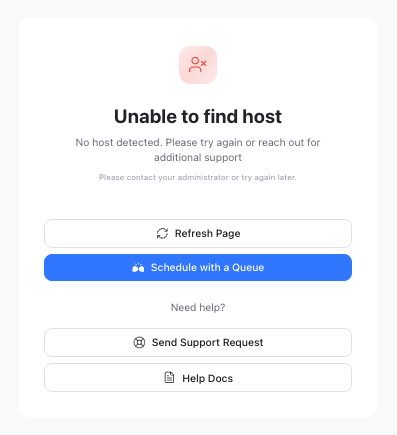
Routing
For routing workflows, the user can select a different queue and re-route the lead to complete scheduling.
Handoffs
For handoff workflows, the user is shown a list of available members and can manually select a host.
Variables
When using the Browser Ext trigger, there are specific variables and options available in the data reference dropdowns that will help you, as an admin, ensure proper passing of data between the ext, the workflow, and the connected tools (such as Salesforce / HubSpot / Attio).
Variable Name | Options | Use-case |
|---|---|---|
Action |
| Used in an |
Book by id | Dynamic variable | Used to log the id of the member using the chrome ext |
Book by name | Dynamic variable | Used to log the name of the member using the chrome ext |
Book by email | Dynamic variable | Used to log the email of the member using the chrome ext |
Lead email | Dynamic variable | Used to log the email of the lead for routing / handoff |
Domain from email | Dynamic variable | Used to truncate the email to include jus the |
Source |
| Used to track where the chrome ext was used from. Currently supporting Salesforce, HubSpot, and Gmail |
Record ID | Dynamic variable | Used to track the |
Record Type | Depends on CRM:
| Used to determine the type of record that was routed |
Previous Queue ID | Dynamic variable | Used to check / write the queue id of the original meeting. Used when trying to handoff |
Prospect Email: Quick fill
When the chrome ext is used from Gmail, Salesforce, or HubSpot, Default automatically captures the lead's email for routing. To do this you can
Go to Salesforce / HubSpot / Gmail
Open the chrome ext
Prospect's email will be pre-filled for scheduling or routing
FAQs
Q: Does Default Skip / Ignore members that are currently on vacation?
Yes, if the member is in a current out of office block at the time of running the ext workflow, then we do automatically exclude members that are marked as out of office. Note, to be considered out of office you must have a qualified vacation mode entry.
The most common way to do so is to enable calendar sync.
Q: Can I determine the event that is used to schedule once I am in the "Book Now" interface?
No, We do not allow for events to be swapped once you are in the "book now" workflow. This is to enable a form of standardizing across events & metadata so that admins can properly track incoming requests and manage hygiene for their downstream destinations - like Salesforce.
Q: I notice my workflow is not working properly, getting an error in my ext of "no scheduler found"
If your workflow is not working and you see the error “no scheduler found”, verify the following:
1. Confirm the workflow and trigger
Ensure the workflow is enabled.
Confirm the workflow uses the Browser Extension trigger.
2. Verify an if-else node exists after submission
After the extension submission step, there must be an
if-elsenode.In the
if-elsenode, you must select one action:Route, orHandoff
3. Configure the if-else logic correctly
If
Routeis selected:The true (left) branch is used for routing logic.
The false (right) branch can be used for handoff.
The workflow evaluates the
if-elseresult to determine which action is executed.
4. Optional: Separate workflows
You may create separate workflows:
One workflow for
RouteOne workflow for
Handoff
This is optional, but each workflow must still include an
if-elsenode to define the action.
Important
An if-else node is required to determine whether the action is Route or Handoff.
If it is missing, the scheduler cannot be resolved and the error will occur.
Q: Can I pick which member to route to, from the ext?
Not quite, unlike other products you might be familiar with our philosophy is that routing should always follow admin-created logic, which is a reflection of their business.
However, in cases where that logic errors or fails to serve up an available member we do have "fallbacks" to then enable the rep to select a queue (for routing) or a queue + member (for handoffs).
This system focuses on business logic accuracy, while having enough flexibility to address specific edge-cases.