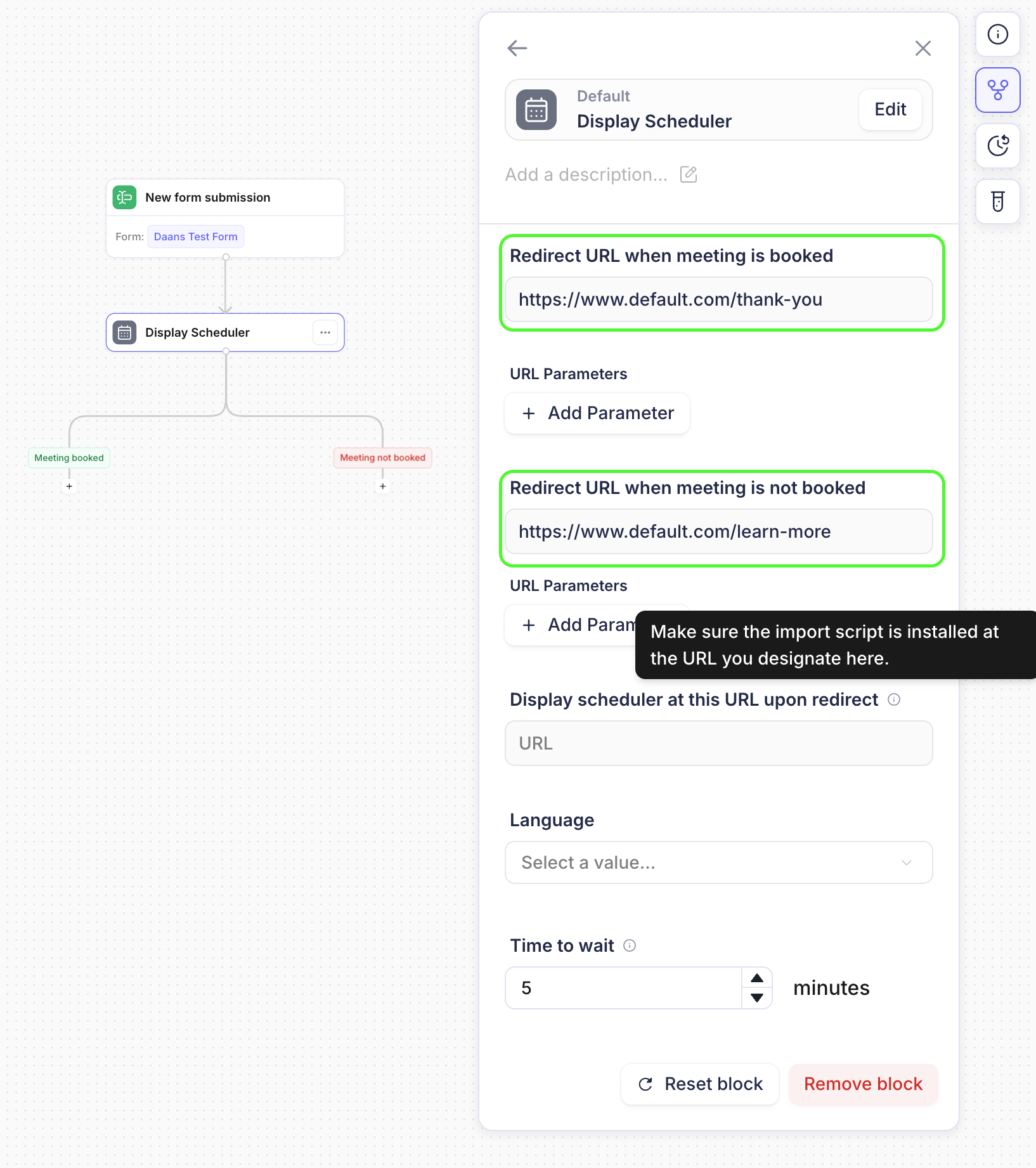
Redirect users after displaying a scheduler
When setting up a workflow to book meetings, you might want to redirect users to a new page to collect additional information, such as feedback or marketing data. This guide will show you how to use the 'Redirect URL' field within the Display Scheduler Object to achieve this.
Steps to Redirect Users
Get to the Display Scheduler Object: Locate the DS Object in your workflow where meetings are booked.
Scroll Towards the Bottom of the Object: In the Image below you can see where to add in redirect URLs.
Use-Cases:
On the new page, you can include a form to collect the desired information, such as "How did you hear about us?"
You can add a "Thank You" note to the page you send the lead to after the meeting is booked.
Create a "Learn More" page for leads who drop out of the Scheduler and don't book a meeting.