
Displaying a scheduler in a workflow
Overview
The Display Scheduler node can be used in a workflow attached to a form to show a scheduler for a specific event. The scheduler can be configured for an individual team member or a queue of members.
For the scheduler to display:
An event and host must be selected.
The meeting host must have their calendar connected in User Settings → Calendar.
The
Event Namein the display scheduler node must have a value set.
Selecting a queue/member
When choosing who the scheduler should display for, you can select:
A specific member in your workspace
A queue
A member referenced in an upstream node (eg. Salesforce record owner)
Using a member from an upstream node
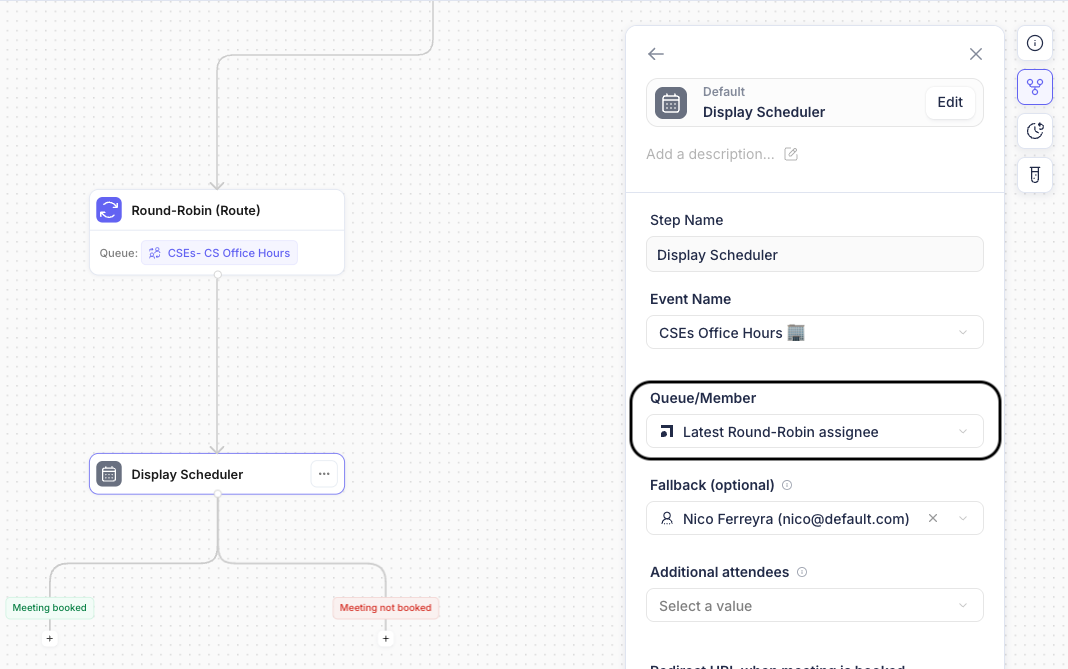
You may reference a member assigned in an upstream Round-Robin node or a member tied to a previous record. For example:
CRM record owner from an upstream Match Node
An assignee from an upstream Round Robin node
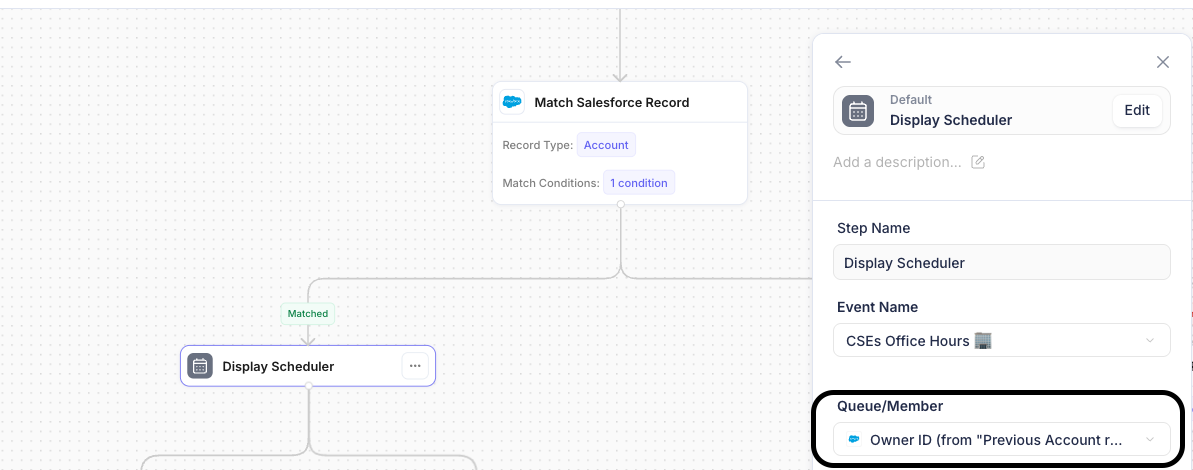
All integration user IDs must be mapped to a member in Default
When using a member from a previous record as the host, set a fallback host in case the record owner is not mapped to a valid member.
Assigning a fallback host
If the scheduler cannot display for a selected member or queue, you can assign a member or queue as the fallback host. This ensures leads can still book a meeting even if the original host is unavailable or not properly mapped.
Adding Additional Attendees
This allows you to construct a group event with multiple attendees. The scheduler will generate available time slots by considering all attendees’ availability, and the meeting will be booked with everyone included on the calendar event.
Additional attendees added through the workflow have their availability considered when showing available slots. Adding extra attendees is only supported when a single member is the output of a Display Scheduler node, not when it is used in correspondence with a queue.