How to set up the Webhook Received trigger
Last updated: May 4, 2026
What it does
The Webhook Received trigger lets Default listen for incoming HTTP POST requests from any third-party platform — Zapier, Customer.io, Clay, Navattic, n8n, your own backend, and so on. Each trigger has a unique endpoint URL, and Default accepts any JSON payload (no required schema), so almost any system that can fire an outbound webhook can drive a workflow.
Once a payload arrives, every field in the JSON becomes selectable downstream from the workflow's data picker — so you can route, branch, enrich, and write the data into your CRM, ticketing tool, or warehouse.
Before you start
A sending service — the platform that will fire the webhook.
A sample payload — a representative JSON body the sender will deliver. Default uses this to learn the shape of your data so the data picker knows every field.
Step 1 — Add the trigger to a workflow
Go to Workflows and create or open a workflow.
Click the trigger node and choose Webhook Received.
Give it a clear Trigger Name (e.g. Navattic — qualified demo). The name shows up in run history and inside the data picker, so it makes referencing fields downstream much easier.
Step 2 — Open Set up webhook and start listening
From the trigger panel, click Set up webhook. The setup modal opens on the Listen for Event step:
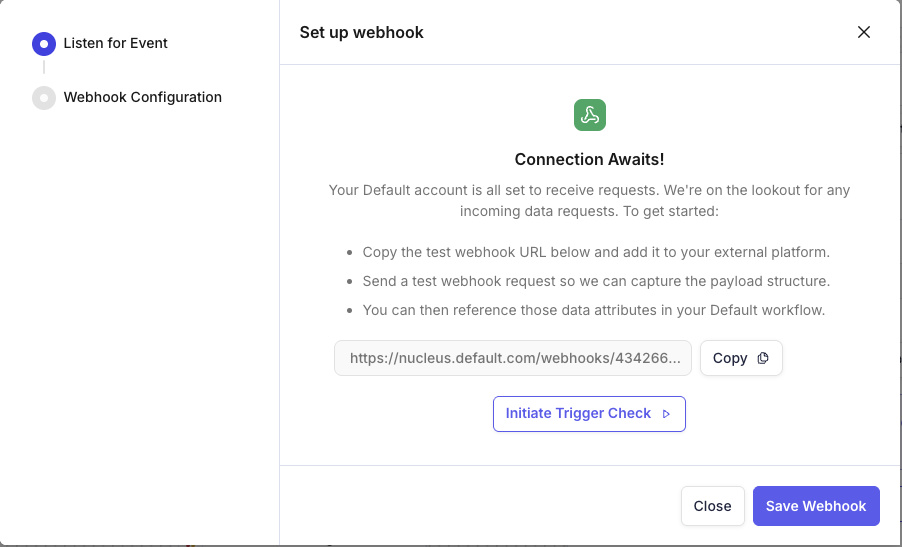
You'll see Connection Awaits! with three things to do:
Copy the test webhook URL (it ends with
?mode=test).Send a test webhook request to that URL so Default can capture the payload structure.
Reference those fields downstream in your workflow.
Copy the test URL with the Copy button.
Step 3 — Send a test payload to the ?mode=test URL
The ?mode=test URL is for setup only — it accepts your payload so Default can register the JSON shape, but it does not start a workflow run. You can fire a payload one of two ways:
Trigger a real event in your sending service so it POSTs to the test URL.
Send a manual request with any HTTP client (Postman, Insomnia,
curl). Example:
curl -X POST "https://nucleus.default.com/webhooks/434266?mode=test" \
  -H "Content-Type: application/json" \
  -d '{
    "event": "demo_completed",
    "lead": {
      "first_name": "Jane",
      "last_name": "Doe",
      "email": "jane.doe@example.com",
      "company": "Acme Inc"
    },
    "score": 92,
    "source": "navattic"
  }'
A successful request returns HTTP 201. The modal advances from Listen for Event to Webhook Configuration as soon as Default captures the payload.
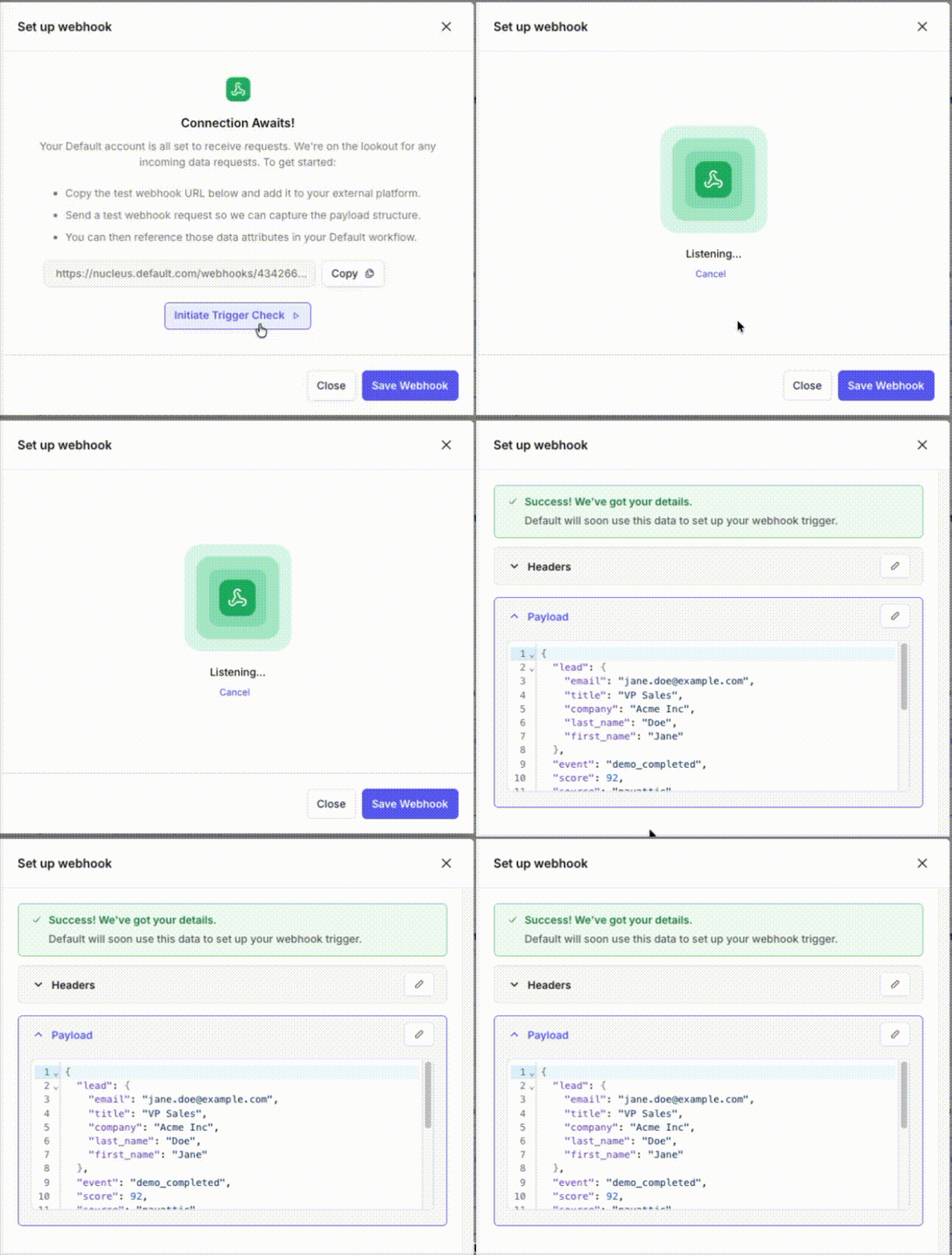
Step 4 — Save the webhook
Click Save Webhook to lock in the configuration. The trigger panel now shows the Custom webhook URL (without ?mode=test) along with a Test Trigger button, the most recent request's headers, and the captured payload:
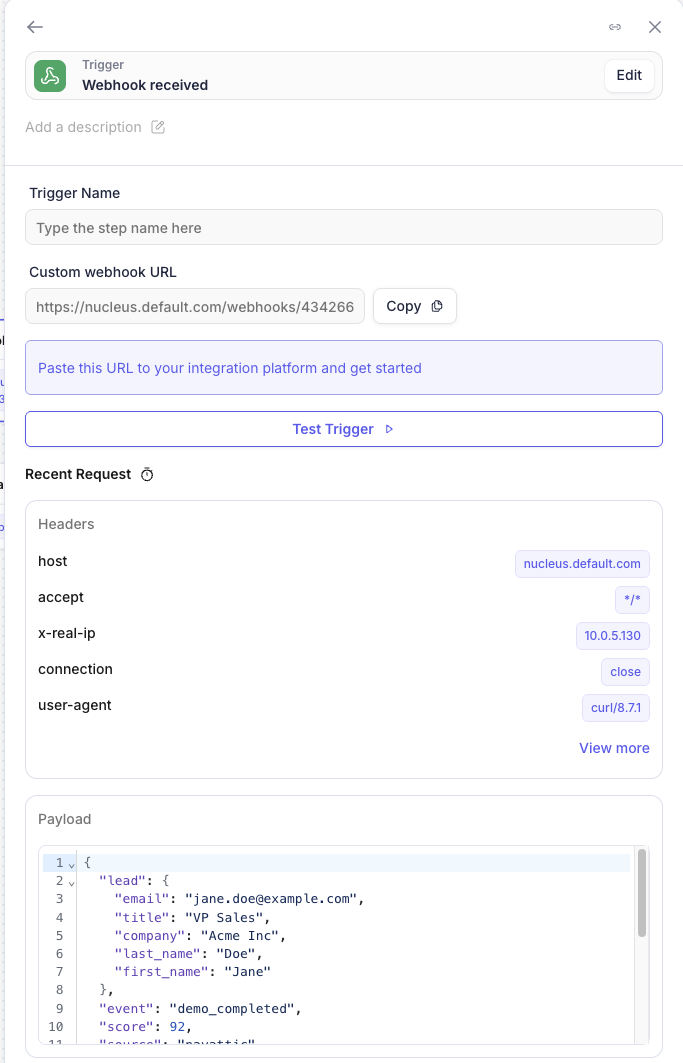
This production URL (e.g. https://nucleus.default.com/webhooks/434266) is what your sending service should POST to going forward. Requests to this URL will execute the workflow.
Step 5 — Reference payload fields downstream
In any downstream step that supports variables, open the data picker. You'll see a group called Webhook payload for "your trigger name" containing every field captured from the sample — including nested objects and arrays.
Pick a field and Default inserts a chip showing the field name with the webhook icon. For example, selecting lead.email from a Navattic payload renders a chip in your downstream field that points at the email captured by the trigger at run time.
Common downstream patterns:
Match Record — find a Lead or Contact in your CRM using an email or external ID from the payload.
Update Record — write payload fields onto the matched record.
Branch — route based on payload fields (e.g. only alert AEs when score > 80).
Send Slack message — notify the right channel or owner with payload context.
Adjusting the captured payload later
If your sending service starts including new fields, or you want to change the captured shape, you can re-capture at any time:
Click Test Trigger on the configured trigger panel and POST a fresh payload to the
?mode=testURL — the most recent capture replaces the previous one.Or edit the trigger and paste an updated sample JSON directly.
Existing workflow runs always use whatever payload was sent at execution time, not the captured sample. The capture only powers the data picker — so it's safe to update.
Example use case — Navattic demo alerts
Default uses Navattic for interactive product demos on its website. When a qualified visitor reaches a key step, Navattic POSTs to a Default webhook trigger. The workflow matches the visitor against Salesforce, looks up the account owner, and DMs the AE in Slack so they can reach out while the prospect is still engaged.
Tips and troubleshooting
No run in history? The request never reached Default. Confirm the URL (use the production URL, not
?mode=test, for live traffic), method (POST), and Content-Type (application/json).Field missing from the data picker? It wasn't in the captured payload. Re-test with a payload that includes it.
Need to test without the real sender? Use
curl, Postman, or any HTTP client to POST sample JSON.Treat the URL as a secret. Anyone with it can send payloads into your workflow.