Zoom Conferencing
Last updated: May 6, 2026
Integrate your Zoom account with Default to streamline conferencing for team-wide and individual use. The Default Zoom App simplifies meeting setup and management by connecting directly via the Zoom Marketplace.
IMPORTANT: A Zoom admin needs to be both: invited to your Default workspace, and the one who sets up the Default integration.
Connecting the integration
Connecting via Default settings
Navigate to Profiles & Settings > Configurations > Integrations in Default.
If you’re already signed in to your Zoom account, the connection will occur automatically without redirecting.
Once connected, the Connect button will change to Manage.
Connecting via the Zoom marketplace
Search for Default in the Zoom App Marketplace.
Click Add to Integration.
If signed in to your Zoom account, you’ll be redirected to Default to complete the connection.
Once connected, the Connect button will change to Manage.

Managing users in your Zoom account
IMPORTANT: Team members must be a part of your Zoom admin's workspace in order to be able to schedule meeting links via Zoom.
Adding users to your Zoom account
Log in to Zoom.
Navigate to User Management > Users.
Enter the following information:
Email Address
User Type
Optional: Department, Manager, Job Title, Location
Click Add.
Using the integration
Admin provider selection
If you prefer to control the preferred conferencing method for all users in the organization, admins can adjust user preferences by
Navigating to Profiles & Settings > Conferencing in Default.
Selecting Zoom as the provider under Admin: Workspace conferencing setup

Individual provider selection
Users who can manage their own conferencing preferences may do so on the same page, under the Conferencing setup section
Removing the integration
Navigate to Profiles & Settings > Configurations > Integrations in Default.
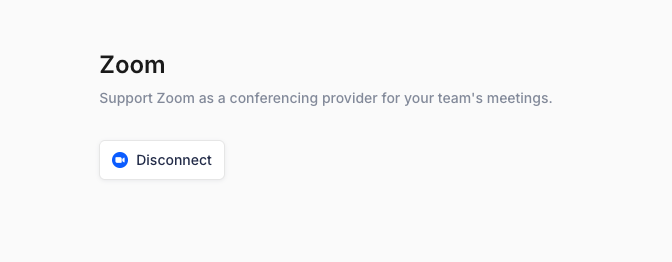
Click Manage
Click Disconnect