Dynamic fields for calendar event descriptions
Last updated: May 10, 2026
What dynamic fields do
When you customize the description that appears in a guest's calendar invite, you can insert dynamic fields. Each field is a placeholder that gets replaced with the right value at the moment the meeting is booked — the guest's name, the meeting link, your team name, form answers, and more. This lets you write one description template and have every invite come out personalized.
In the editor, dynamic fields appear as labeled chips in {{ double curly braces }} (for example {{ guest first name }}). At booking time, each chip is replaced with the matching value.
How to insert a dynamic field
Open the scheduler event you want to edit and go to its calendar description.
Place your cursor where you want a value to appear.
Choose a field from the dynamic field menu in the editor toolbar.
Save your changes. New bookings on that event will use the updated description.
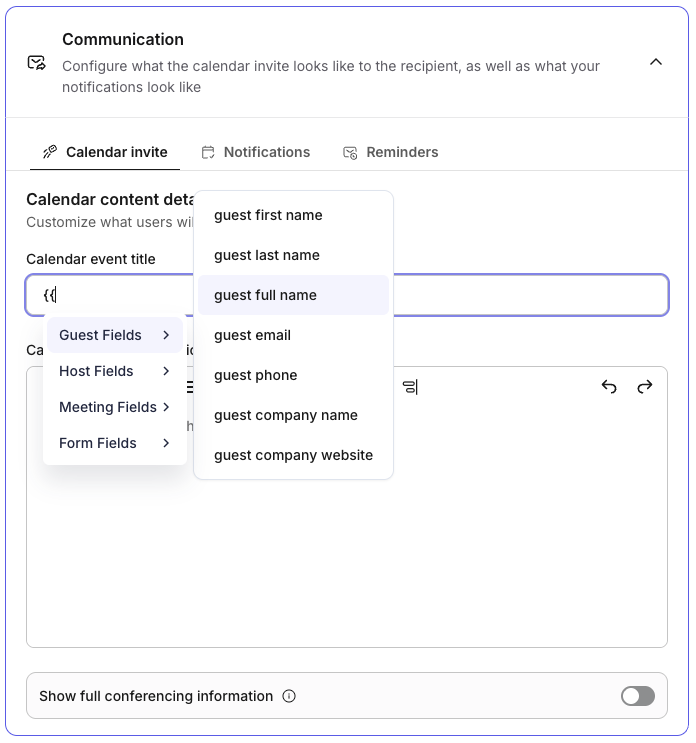
Available fields
Meeting details
{{ meeting title }}— the title of the scheduler event being booked.{{ meeting description }}— the description configured on the event.{{ meeting link }}— the conferencing URL for the booking (Zoom, Google Meet, Microsoft Teams, etc., depending on what's connected).
Guest information
Pulled from the booker's submission and any matching contact record.
{{ guest first name }}{{ guest last name }}{{ guest full name }}— combines first and last name.{{ guest email }}{{ guest company name }}{{ guest company website }}{{ guest phone }}
Host information
Pulled from the host that owns the booked slot.
{{ host first name }}{{ host last name }}{{ host full name }}— combines first and last name.{{ host email }}{{ team name }}— the name of the team the event belongs to.
Form responses
{{ all form responses }}— every answer the booker submitted on the booking form for that event, rendered as a formatted list of question: answer pairs.
How values are filled in
If a field has no value for a particular booking (for example, the guest didn't provide a phone number, or the event has no team), the placeholder is replaced with an empty string. The rest of the description still renders normally.
{{ all form responses }}appears as a bulleted list, with each question shown in bold followed by the booker's answer. If the booker didn't fill in a question, that line is omitted.You can mix dynamic fields freely with your own static text, headings, links, and formatting.
Example
A description template like this:
Hi {{ guest first name }},

Looking forward to our {{ meeting title }}. Here's everything you need:

Join link: {{ meeting link }}
Host: {{ host full name }} ({{ host email }})
Team: {{ team name }}

What you shared with us:
{{ all form responses }}
...will be delivered to the guest with each placeholder replaced by the actual booking values.
Tips
Always insert dynamic fields from the toolbar menu rather than typing the curly braces by hand — the editor needs the chip to know which value to substitute.
Preview a test booking after editing your description so you can see exactly what your guests will receive.
If a field renders as blank when you expected a value, double-check that the corresponding contact field or form question is populated for that booking.
Some calendar providers (notably Zoom) append their own native meeting details after your description. That extra content is added by the provider and isn't controlled by these fields.